I’m frequently called upon to create engaging, animated educational videos from PowerPoint lectures–we use Vyond to do this, because it helps create a coherent look and feel, and it comes with a host of pre-created scenes, props, and characters, which makes the process simpler and more efficient. Sometimes I go into a previously-created Vyond video or template and edit it for new content, but if I’m creating from scratch, I will often storyboard.
A storyboard is a drafting technique used by designers to help visualize how a longer text–usually a video–will be played out in segments or scenes. You can think of a storyboard almost like a blank cartoon strip that you fill in with characters, objects, and other elements as the narrative progresses.
A storyboard is a drafting technique used by designers to help visualize how a longer text–usually a video–will be played out in segments or scenes.
Sometimes my storyboarding sometimes actually takes place in Vyond’s timeline–I’ll block out parts of the lecture content in the timeline with assets that already exist, which I then flesh out with details and timings specific to the PowerPoint or lecture script. But sometimes I use Post-Its or a generic storyboard template to help me imagine how the narrative will unfold visually.
Basically, you want first to get a handle on the content, then draft out your storyboard, then get initial approvals and head over to Vyond for blocking before getting busy with the real nitty gritty details of timings, animations, and so on.
1. Learn the content
The very first thing you’ll need to do is get a handle, even a preliminary handle, on the content. Learning designers have to be good at understanding new content quickly, so it’s a great career for folks who like to be exposed to new things all the time. After editing a script that goes with a PowerPoint about Cloud Computing Security, I have a pretty good idea of how to render the narrative visually, instead of just as bullet points or text and static images, as often is the case with PPTs. As I’m editing, I’ll try to picture ways to make the content come alive, and I keep in mind the kind of assets that come with Vyond as I do so.
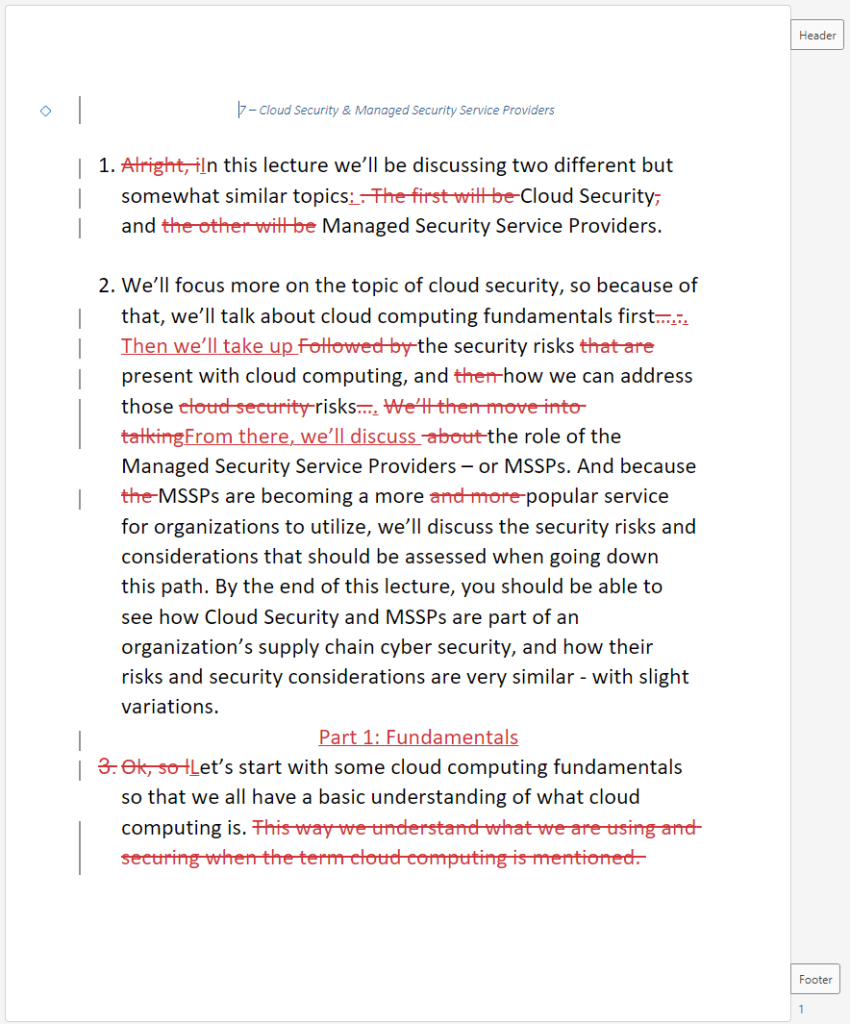
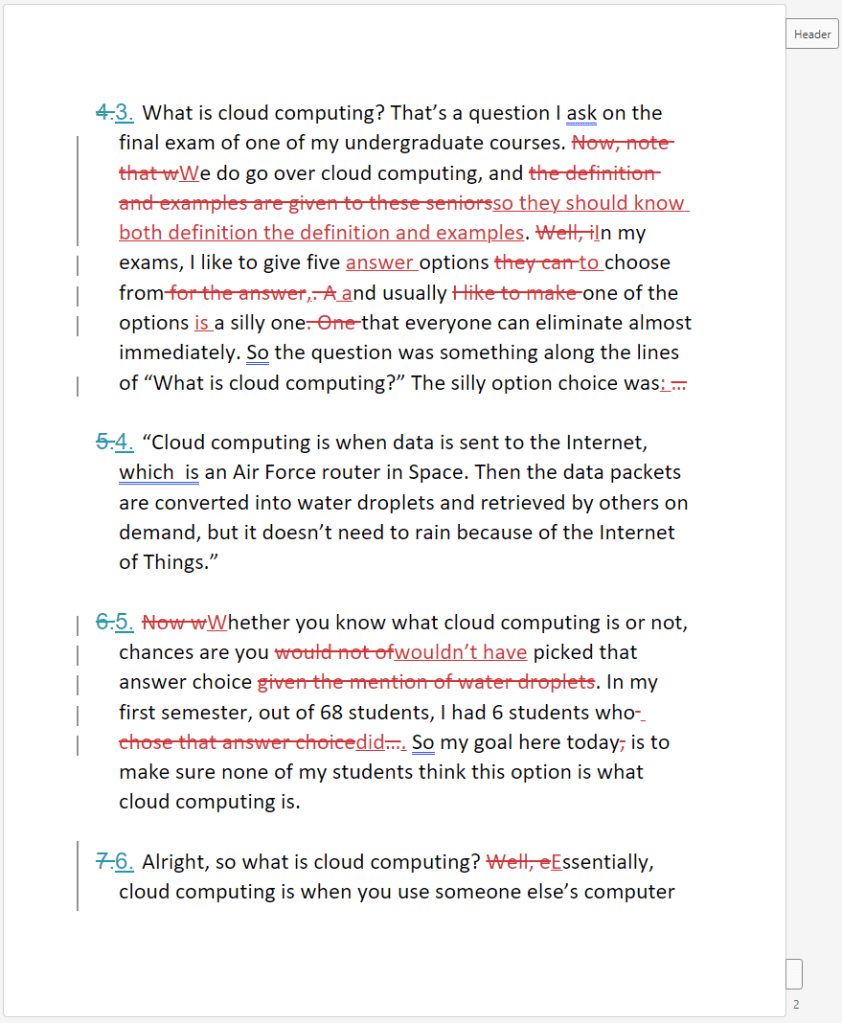
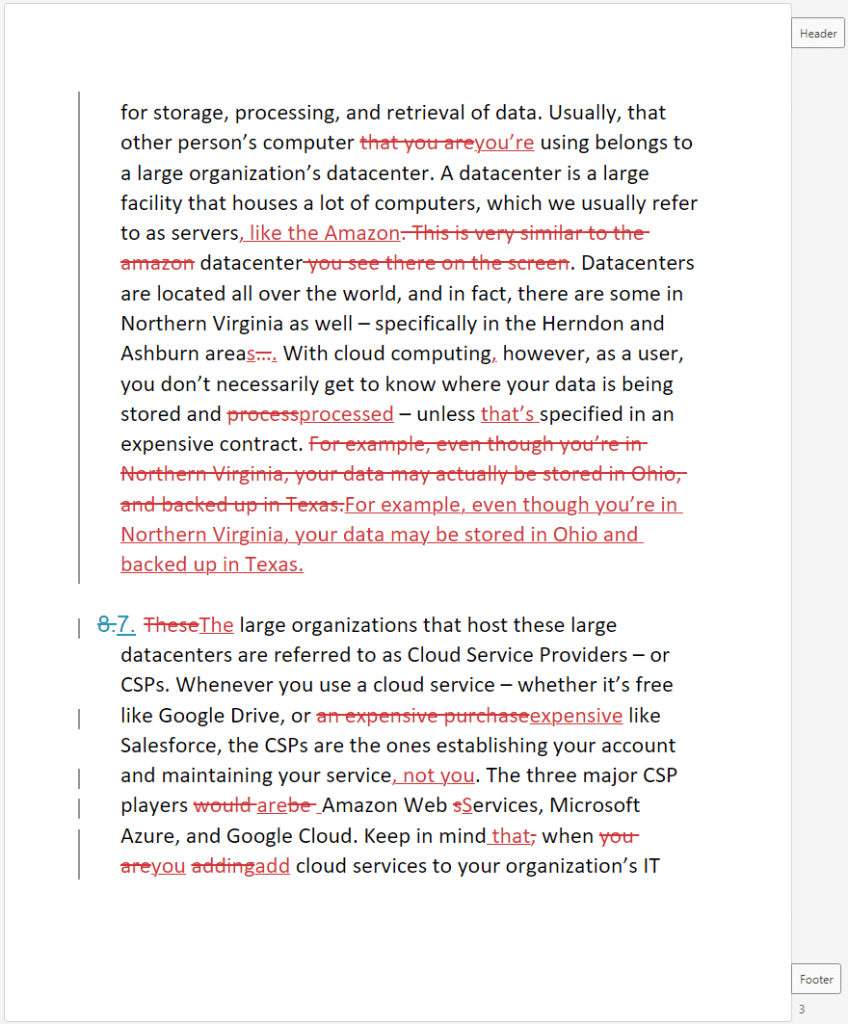
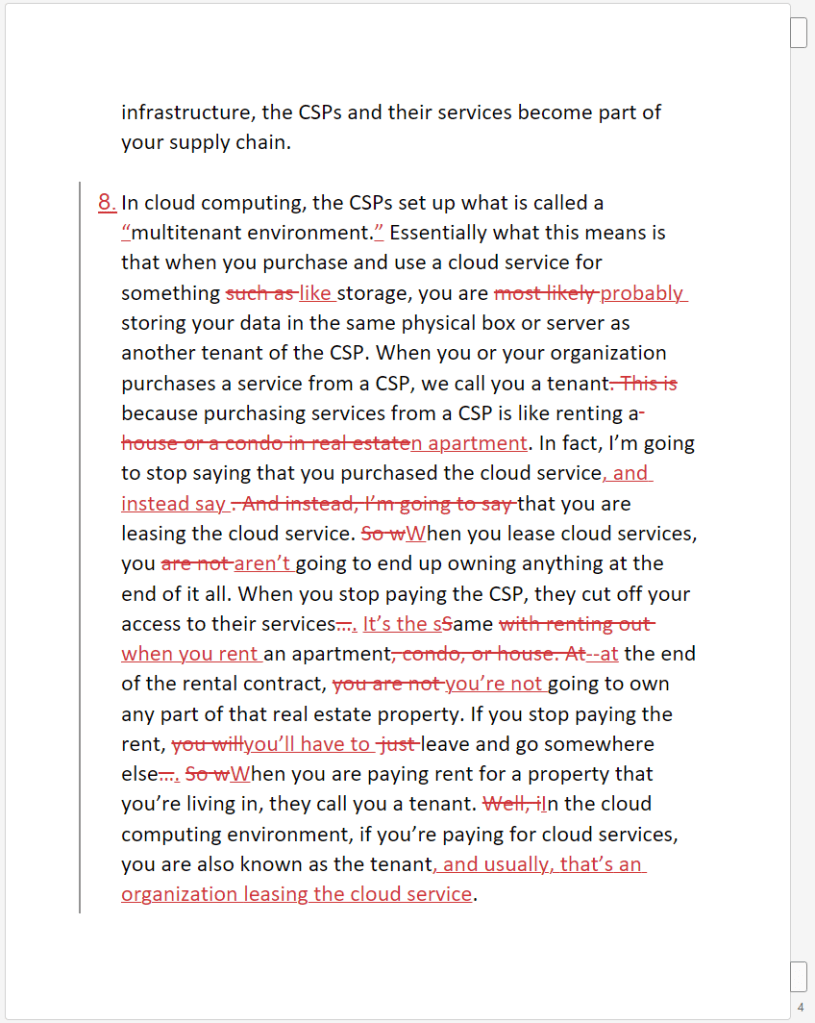

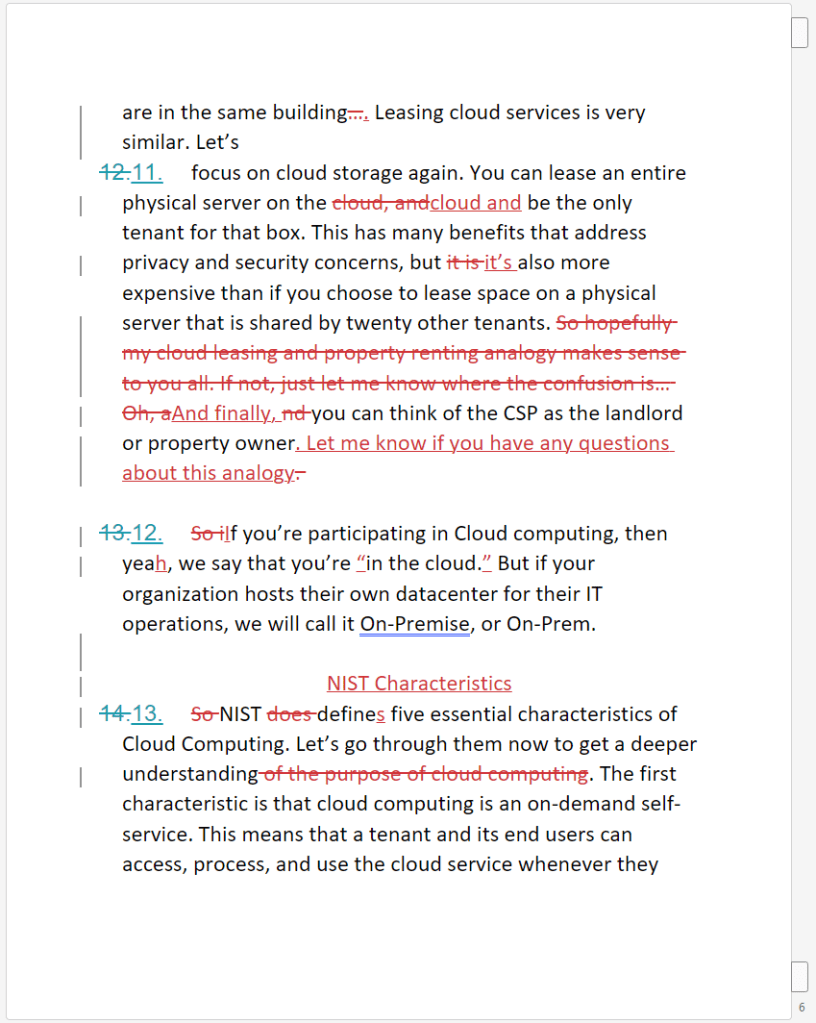
In this case, the SME uses an extended metaphor about renting an apartment to help explain the basics of cloud computing. I thought incorporating a few scenes of people in a crowded apartment, in contrast to a roomy villa, would be a great way to visualize the content and aid understanding. The lecture also contained some signposting and some key terminology, which I wanted to provide in text form for retention purposes.
2. Draft your storyboard
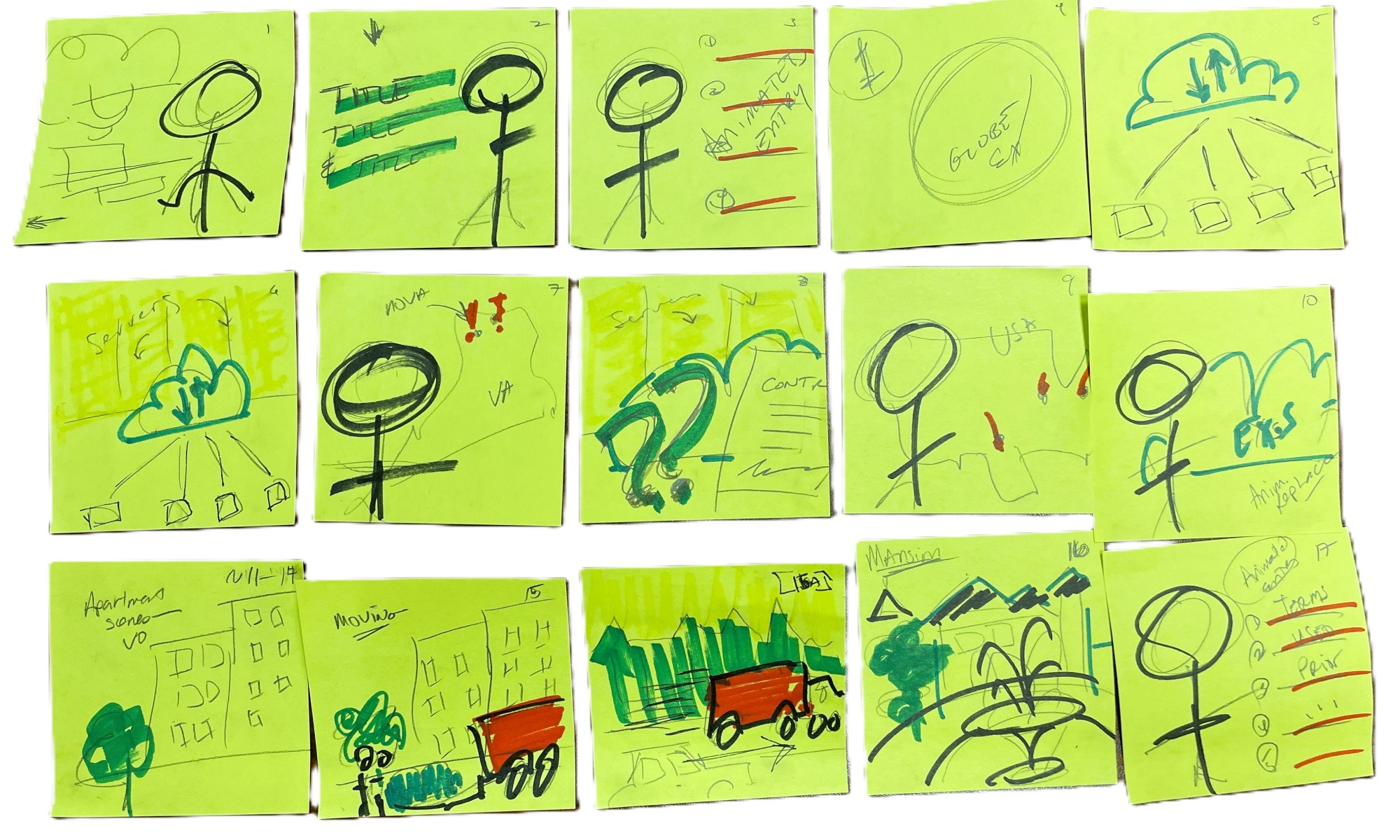
I used Post-Its to block out the first six pages of the lecture into about 15 scenes. Some of the scenes I chose not to include in the storyboard, because I knew they existed in Vyond and could easily be dropped in with an accompanying voiceover. It’s important to remember that you don’t have to be a great artist when you’re storyboarding! Stick figures are totally cool, as anyone who reads XKCD knows.

From left to right, top to bottom, these are the scenes I included:
- Introductory scene with my character speaking
- Title slide with speaker
- Signpost of content to come with speaker
- Splash for part 1 using the wrong answer example in the script–I plan to do an animated overlay with a globe in the background and text in the foreground; the globe will be “under attack”
- Illustration of cloud computing (voiceover explanation)
- Transitioning into a scene of the same with servers added behind the illustration (voiceover)
- Where data servers are in Virginia, with speaker
- Illustration of unknown location of data, unless specified in a contract (voiceover)
- My speaker explaining how you may be in a very different place from your data and your backups
- Illustration from PPT of common cloud service providers, with speaker
- Beginning of the apartment leasing metaphor; several additional scenes of people in apartments to follow, not pictured. This has no speaker, only voiceover.
- Visual explanation of canceling or shifting cloud provider with the metaphor of moving
- Moving (VO continued)
- Visual metaphor of a mansion (single tenant) to contrast with an apartment (multitenant), voiceover
- Conclusion scene showing keywords, terms, and concepts, with speaker.
When doing a storyboard for an instructional video, your team or SME may want more or less detail. In my case, I’m working with a script and a PowerPoint already, and my job is to get all the content into the video in a more engaging, visual way. I know how my SME works and what he wants; the more I know, the less detailed my storyboards are. But starting out, I would probably want to have a bit more text explaining what’s going on, what the animations would be doing, and what the VO would cover.
3. Templates
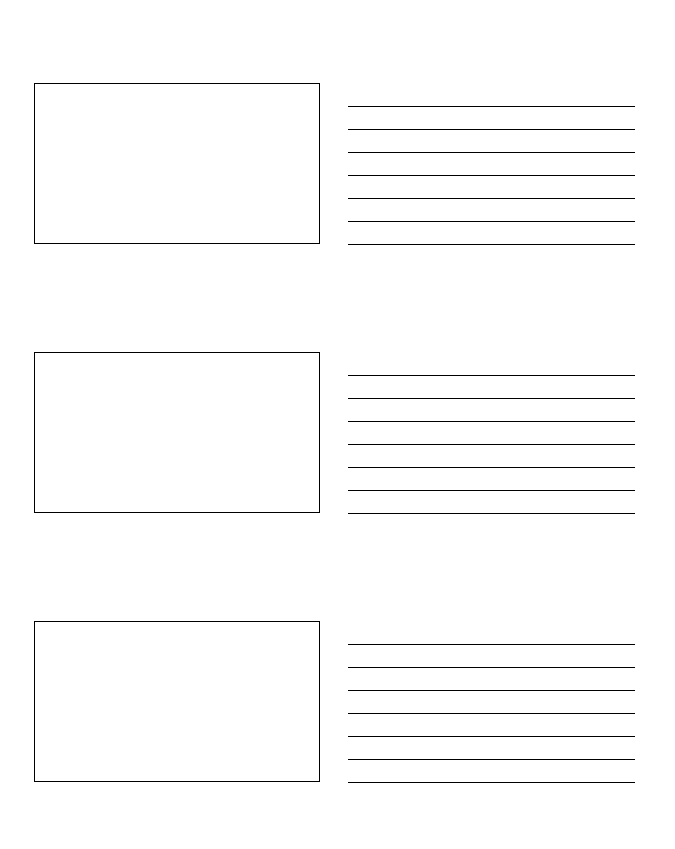
Here’s a simple storyboard template I’ve used in teaching circumstances, when I’ve asked students to plot out an essay or a video project draft. You can also create one in Word or, as I’ve done for this, PowerPoint (this template is actually just a blank 3-slide PPT handout). Enjoy!

4. Next steps?
What would my next steps be? Well, I’d first block the storyboard out in Vyond, then add voiceover to get the timings right, edit the speaking character’s actions and lip-synch the VO to the character, then adjust camera movement, transitions, and animations.
Here’s my initial blocking out of the storyboard in Vyond, for those who are interested.


How do you storyboard? Do you find it a useful technique? Why or why not?
 Tonya Howe